
Using ChroMind
The side panel
Chat about the page you're on, run quick actions, add tabs and screenshots, and find old chats.
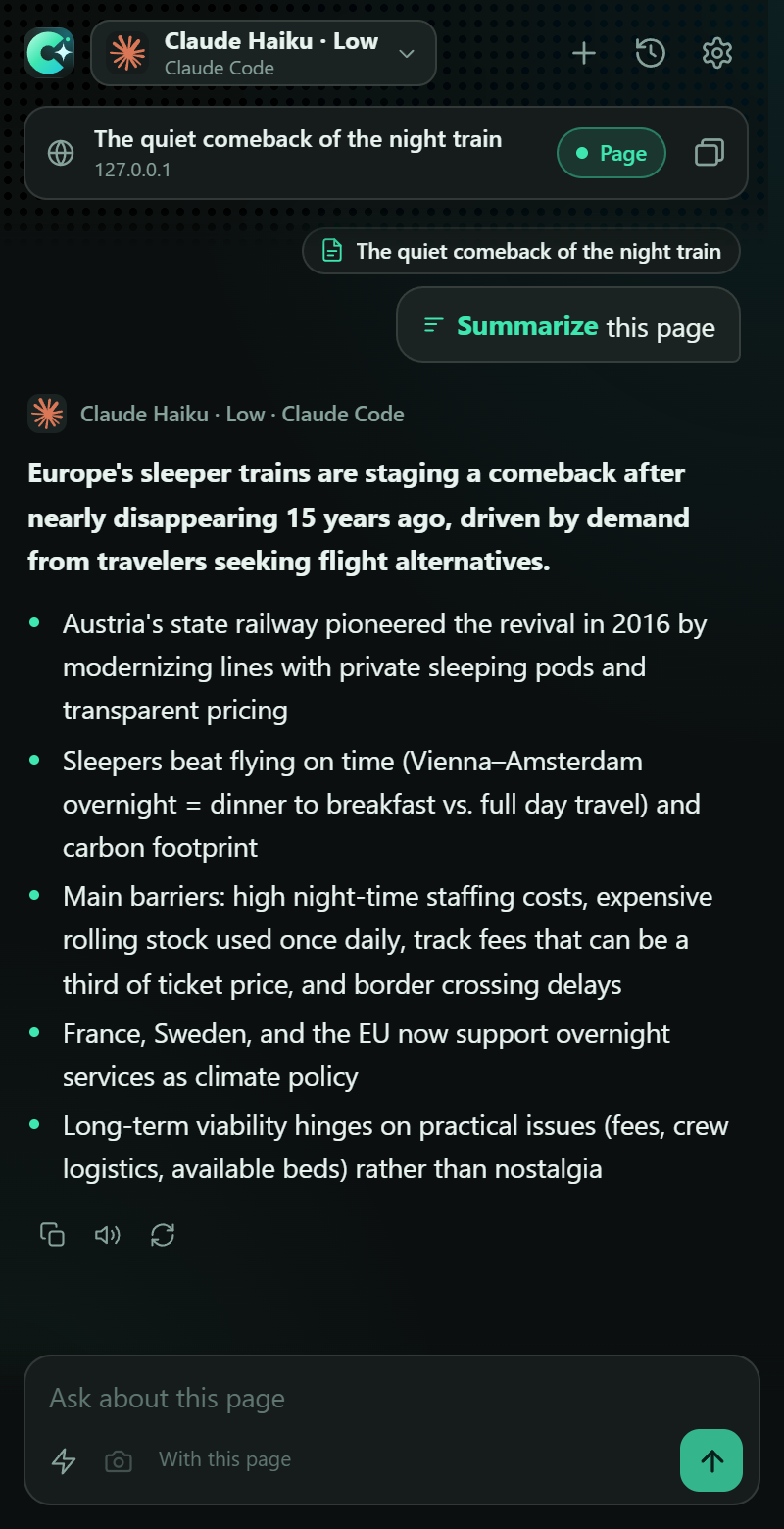
#Open it
- Click the ChroMind toolbar button, or press Alt+Shift+A.
- Chromium: it's the browser's side panel. Firefox and Zen: it's the sidebar (switch sidebars from its header).
- The panel follows your active tab. Reopening it brings back the chat you had.
#Pick the AI
The pill in the header shows the model and provider answering, with the maker's logo. Click it for the picker: providers on the left, models on the right, depth chips under models that can think harder, and a search box across everything that's ready. See the picker.
#The page bar
Under the header, ChroMind shows the tab it's reading. The Page switch decides whether the page goes with your question; ChroMind sends a page once per chat and reuses it for follow-ups. On YouTube it says Video and sends the transcript instead.
- Add tabs (the tabs icon) puts other tabs in the chat, for comparing or summarizing several pages.
- Pages ChroMind can't read (browser pages, extension stores, PDFs in the built-in viewer) show ChroMind can't read this page, and you can still chat.
- Long pages are cut at the limit in Settings → Behavior (60,000 characters by default), and the model is told.
#Quick actions and slash commands
An empty chat shows actions for what's in front of you: a page, a video, a selection, a link or several tabs. Type
/ in the message box for the full list, use the arrow keys and Enter, or keep typing to add
instructions: /translate make it formal.
| Action | Works on |
|---|---|
| Summarize, Key points | Page, video, selection, link, tabs |
| Explain, Explain like I'm 5, Simplify | Page, selection |
| Translate (to the language in settings) | Page, selection |
| Improve writing, Draft a reply | Selection |
| Fact-check, Action items | Page, selection |
| Suggest questions | Page, video, tabs |
| Compare | Tabs |
| Describe image | Images, screenshots |
Add your own in Settings → Quick actions. They appear here, in the slash menu, in right-click menus and in the selection toolbar.
#YouTube
On a video page ChroMind opens YouTube's transcript, reads it with timestamps and closes it again. Answers cite
moments like [4:12]; click one to jump the video there, in the tab that already plays it. Videos without captions fall back to the page text.
#Screenshots and images
The camera button attaches a screenshot of the visible page: handy for charts, designs and image-heavy pages. Right-click any image for Describe image or Ask about this image. Claude, Hermes and vision models on API-key providers can see images, as can OpenCode with a Zen key. Apps through the Bridge can't.
#Answers
- While it works, a small scanner (the one OpenCode uses) shows what's happening: Reading the page, Thinking, Using web_search, Writing, with a timer.
- Answers stream in as Markdown, with code blocks you can copy and tables that scroll. Each one is labeled with the model and provider that wrote it.
- Models that think show a collapsible Thinking section; agents like Hermes show the tools they used.
- Under each answer: Copy, Read aloud, Regenerate, and for Claude, Open in claude.ai.
- Esc or the stop button ends an answer early.
- When something's wrong (signed out, a server that doesn't answer), the error says what to do, with a button to the right setting and, where it helps, a command to copy.
#History
Chats are saved in the browser (Settings → Data & privacy turns that off). The history button lists them by day with
search; Export chat saves the open one as Markdown. The + button starts a new chat.
#Full-page chat
Type cm, a space and a question in the address bar. ChroMind opens in a tab and answers there, without page context.